<!DOCTYPE html>
    <html lang="vi" xmlns="http://www.w3.org/1999/xhtml" prefix="og: http://ogp.me/ns#">
    <head>
<title>Hướng dẫn sử dụng Google Classroom Dành cho GV</title>
<meta name="description" content="Hướng dẫn sử dụng Google Classroom Dành cho GV - Savefile - Tin Tức - http&#x3A;&#x002F;&#x002F;arrebol.edu.vn&#x002F;savefile&#x002F;kinh-nghiem&#x002F;huong-dan-su-dung-google-classroom-danh-cho-gv-48.html">
<meta name="author" content="Arrebol  - Chia sẻ kiến thức kết nối thành công">
<meta name="copyright" content="Arrebol  - Chia sẻ kiến thức kết nối thành công [webmaster@arrebol.edu.vn]">
<meta name="generator" content="NukeViet v4.5">
<meta http-equiv="Content-Type" content="text/html; charset=utf-8">
<meta property="og:title" content="Hướng dẫn sử dụng Google Classroom Dành cho GV">
<meta property="og:type" content="website">
<meta property="og:description" content="Savefile - Tin Tức - http&#x3A;&#x002F;&#x002F;arrebol.edu.vn&#x002F;savefile&#x002F;kinh-nghiem&#x002F;huong-dan-su-dung-google-classroom-danh-cho-gv-48.html">
<meta property="og:site_name" content="Arrebol  - Chia sẻ kiến thức kết nối thành công">
<meta property="og:url" content="http://arrebol.edu.vn/savefile/kinh-nghiem/huong-dan-su-dung-google-classroom-danh-cho-gv-48.html">
<link rel="shortcut icon" href="http://arrebol.edu.vn/uploads/3157808.png">
<link rel="canonical" href="http://arrebol.edu.vn/savefile/kinh-nghiem/huong-dan-su-dung-google-classroom-danh-cho-gv-48.html">
<link rel="alternate" href="http://arrebol.edu.vn/rss/" title="Tin Tức" type="application/rss+xml">
<link rel="alternate" href="http://arrebol.edu.vn/rss/Tin-tuc/" title="Tin Tức - Tin tức" type="application/rss+xml">
<link rel="alternate" href="http://arrebol.edu.vn/rss/kho-sach/" title="Tin Tức - Kho sách" type="application/rss+xml">
<link rel="alternate" href="http://arrebol.edu.vn/rss/toan/" title="Tin Tức - Toán" type="application/rss+xml">
<link rel="alternate" href="http://arrebol.edu.vn/rss/tin-hoc/" title="Tin Tức - Tin học" type="application/rss+xml">
<link rel="alternate" href="http://arrebol.edu.vn/rss/hoa-hoc/" title="Tin Tức - Hóa học" type="application/rss+xml">
<link rel="alternate" href="http://arrebol.edu.vn/rss/vat-li/" title="Tin Tức - Vật lí" type="application/rss+xml">
<link rel="alternate" href="http://arrebol.edu.vn/rss/tieng-anh/" title="Tin Tức - Tiếng Anh" type="application/rss+xml">
<link rel="alternate" href="http://arrebol.edu.vn/rss/mon-khac/" title="Tin Tức - Môn khác" type="application/rss+xml">
<link rel="alternate" href="http://arrebol.edu.vn/rss/tai-lieu/" title="Tin Tức - Tài liệu" type="application/rss+xml">
<link rel="alternate" href="http://arrebol.edu.vn/rss/kinh-nghiem/" title="Tin Tức - Kinh nghiệm" type="application/rss+xml">
<link rel="alternate" href="http://arrebol.edu.vn/rss/de-thi/" title="Tin Tức - Đề thi" type="application/rss+xml">
<link rel="alternate" href="http://arrebol.edu.vn/rss/khoi-10/" title="Tin Tức - Khối 10" type="application/rss+xml">
<link rel="alternate" href="http://arrebol.edu.vn/rss/khoi-11/" title="Tin Tức - Khối 11" type="application/rss+xml">
<link rel="alternate" href="http://arrebol.edu.vn/rss/khoi-12/" title="Tin Tức - Khối 12" type="application/rss+xml">
<link rel="alternate" href="http://arrebol.edu.vn/rss/hsg/" title="Tin Tức - HSG" type="application/rss+xml">
<link rel="alternate" href="http://arrebol.edu.vn/rss/tin-hoc-9/" title="Tin Tức - Tin học 9" type="application/rss+xml">
<link rel="alternate" href="http://arrebol.edu.vn/rss/ma-nguon/" title="Tin Tức - Mã nguồn" type="application/rss+xml">
<link rel="alternate" href="http://arrebol.edu.vn/rss/visual-basic-for-application-vba/" title="Tin Tức - Visual Basic &#40;VBA&#41;" type="application/rss+xml">
<link rel="alternate" href="http://arrebol.edu.vn/rss/c-c/" title="Tin Tức - C&#x002F;C++" type="application/rss+xml">
<link rel="alternate" href="http://arrebol.edu.vn/rss/visual-basic/" title="Tin Tức - Visual Basic" type="application/rss+xml">
<link rel="alternate" href="http://arrebol.edu.vn/rss/c/" title="Tin Tức - C&#x23;" type="application/rss+xml">
<link rel="alternate" href="http://arrebol.edu.vn/rss/php/" title="Tin Tức - PHP" type="application/rss+xml">
<link rel="alternate" href="http://arrebol.edu.vn/rss/robotics/" title="Tin Tức - Robotics" type="application/rss+xml">
<link rel="preload" as="style" href="http://arrebol.edu.vn/assets/css/font-awesome.min.css" type="text/css">
<link rel="preload" as="style" href="http://arrebol.edu.vn/themes/arrebol/css/bootstrap.non-responsive.css" type="text/css">
<link rel="preload" as="style" href="http://arrebol.edu.vn/themes/arrebol/css/style.css" type="text/css">
<link rel="preload" as="style" href="http://arrebol.edu.vn/themes/arrebol/css/style.non-responsive.css" type="text/css">
<link rel="preload" as="style" href="http://arrebol.edu.vn/themes/arrebol/css/news.css" type="text/css">
<link rel="preload" as="style" href="http://arrebol.edu.vn/themes/arrebol/css/custom.css" type="text/css">
<link rel="preload" as="script" href="http://arrebol.edu.vn/assets/js/jquery/jquery.min.js" type="text/javascript">
<link rel="preload" as="script" href="http://arrebol.edu.vn/assets/js/language/vi.js" type="text/javascript">
<link rel="preload" as="script" href="http://arrebol.edu.vn/assets/js/global.js" type="text/javascript">
<link rel="preload" as="script" href="http://arrebol.edu.vn/themes/arrebol/js/news.js" type="text/javascript">
<link rel="preload" as="script" href="http://arrebol.edu.vn/themes/arrebol/js/main.js" type="text/javascript">
<link rel="preload" as="script" href="http://arrebol.edu.vn/themes/arrebol/js/custom.js" type="text/javascript">
<link rel="preload" as="script" href="http://arrebol.edu.vn/themes/arrebol/js/bootstrap.min.js" type="text/javascript">
<link rel="stylesheet" href="http://arrebol.edu.vn/assets/css/font-awesome.min.css">
<link rel="stylesheet" href="http://arrebol.edu.vn/themes/arrebol/css/bootstrap.non-responsive.css">
<link rel="stylesheet" href="http://arrebol.edu.vn/themes/arrebol/css/style.css">
<link rel="stylesheet" href="http://arrebol.edu.vn/themes/arrebol/css/style.non-responsive.css">
<link rel="StyleSheet" href="http://arrebol.edu.vn/themes/arrebol/css/news.css">
<link rel="stylesheet" href="http://arrebol.edu.vn/themes/arrebol/css/custom.css">
<style>
	body{background: #fff;}
</style>
    </head>
    <body>
<div id="print">
	<div id="hd_print">
		<h2 class="pull-left">Arrebol  - Chia sẻ kiến thức kết nối thành công</h2>
		<p class="pull-right"><a title="Arrebol  - Chia sẻ kiến thức kết nối thành công" href="http://arrebol.edu.vn/">http://arrebol.edu.vn</a></p>
	</div>
	<div class="clear"></div>
	<hr />
	<div id="content">
		<h1>Hướng dẫn sử dụng Google Classroom Dành cho GV</h1>
		<ul class="list-inline">
			<li>Chủ nhật - 12/09/2021 18:43</li>
			<li class="hidden-print txtrequired"><em class="fa fa-print">&nbsp;</em><a title="In ra" href="javascript:;" onclick="window.print()">In ra</a></li>
			<li class="hidden-print txtrequired"><em class="fa fa-power-off">&nbsp;</em><a title="Đóng cửa sổ này" href="javascript:;" onclick="window.close()">Đóng cửa sổ này</a></li>
		</ul>
		<div class="clear"></div>
		<div id="hometext">
			Với dịch Covid-19 thì các lớp học online trên Google Classroom đã ra đời để phục vụ cho việc giảng dạy và truyền tải những thông điệp cho các em học sinh.
		</div>
				<div class="imghome">
			<img alt="Hướng dẫn sử dụng Google Classroom Dành cho GV" src="http://arrebol.edu.vn/uploads/news/2021_09/00.jpg" width="460" class="img-thumbnail" />
		</div>
		<div class="clear"></div>
		<div id="bodytext" class="clearfix">
			Mời quý thầy cô xem qua nội dung hướng dẫn trên video hoặc nội dung bài viết bên dưới.<br />
<iframe allow="autoplay;" allowfullscreen="" frameborder="0" height="400" scrolling="no" src="https://www.youtube.com/embed/xVrxanCvH2k?rel=0&amp;autoplay=1" width="550"></iframe><br />
&nbsp;
<h3 id="qmenu1">I. Google Classroom là gì?&nbsp;</h3>

<p><a href="https://www.thegioididong.com/game-app/google-classroom-quan-ly-lop-hoc-221765" rel="dofollow" target="_blank" title="Google Classroom">Google Classroom</a>&nbsp;là một trong những cánh tay đắc lực và đang dần trở thành một công cụ giảng dạy online hữu hiệu. Việc sử dụng mang lại rất nhiều lợi ích cho giáo viên và người học, nhất là trong đợt dịch Covid - 19. Từ việc dạy online này, giáo viên có thể truyền tải những bài học hay thông điệp giúp học sinh sinh viên theo dõi không khác gì lớp học chính thức.</p>

<h3 id="qmenu2">II. Các chức năng của Google Classroom đối với giáo viên</h3>

<ul>
	<li>Thiết kế chương trình giảng dạy dành cho học sinh.</li>
	<li>Tạo nên các bài làm mẫu cho học sinh tham khảo.</li>
	<li>Giảm các bài kiểm tra trên giấy.</li>
	<li>Đánh giá quá trình học tập của học sinh - sinh viên online.</li>
</ul>

<h3 id="qmenu3">III. Hướng dẫn tạo lớp học online và mời học sinh vào lớp trong Google Classroom</h3>

<h4 id="subqmenu1">1. Hướng dẫn nhanh</h4>

<ul>
	<li>Đăng nhập vào&nbsp;<strong>Google Classroom&nbsp;</strong>&gt; Bấm vào&nbsp;<strong>biểu tượng dấu cộng</strong>&nbsp;(<strong>+</strong>) và chọn&nbsp;<strong>Tạo lớp học.</strong></li>
	<li>Vào lớp học bạn muốn mời học sinh vào lớp, chọn mục&nbsp;<strong>Mọi người&nbsp;</strong>&gt;&nbsp;Chọn&nbsp;<strong>biểu tượng hình người</strong>&nbsp;ở mục&nbsp;<strong>Sinh viên</strong>.</li>
	<li>Nhập&nbsp;<strong>Gm</strong><strong>ail học sinh - sinh viên</strong>&nbsp;cần mời vào và chọn&nbsp;<strong>Mời</strong>.&nbsp;</li>
</ul>

<h4 id="subqmenu2">2. Hướng dẫn chi tiết</h4>

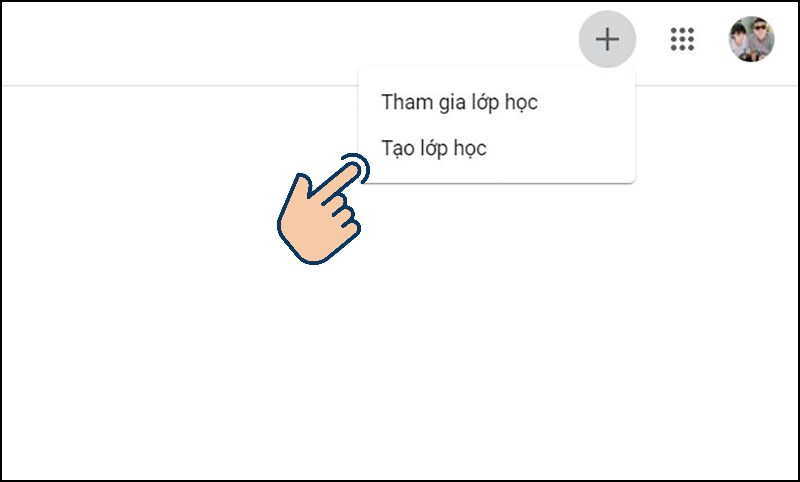
<p><strong>Bước 1:</strong>&nbsp;Đăng nhập vào tài khoản&nbsp;<strong>Google Classroom&nbsp;</strong>&gt; Tại giao diện chính, bấm vào&nbsp;<strong>biểu tượng dấu cộng</strong>&nbsp;(<strong>+</strong>) và chọn&nbsp;<strong>Tạo lớp học</strong>.</p>
<img alt="Tại giao diện bấm vào biểu tượng (+) và chọn Tạo lớp học." data-original="https://cdn.tgdd.vn/2020/06/content/cach-su-dung-google-classroom-cho-giao-vien1-800x482.jpg" height="482" src="https://cdn.tgdd.vn/2020/06/content/cach-su-dung-google-classroom-cho-giao-vien1-800x482.jpg" width="800" />
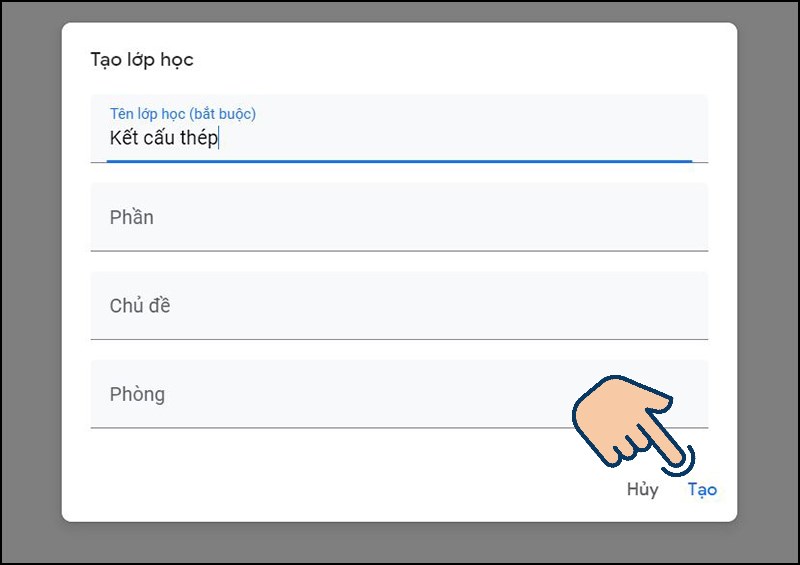
<p><strong>Bước 2:</strong>&nbsp;Nhập&nbsp;<strong>tên lớp học</strong>,&nbsp;<strong>phần</strong>,&nbsp;<strong>chủ đề</strong>&nbsp;và&nbsp;<strong>phòng</strong>. Sau đó bấm&nbsp;<strong>Tạo</strong>.</p>
<img alt="Nhập tên lớp học, phần, chủ đề và phòng. Sau đó bấm Tạo." data-original="https://cdn.tgdd.vn/2020/06/content/cach-su-dung-google-classroom-cho-giao-vien2-800x565.jpg" height="565" src="https://cdn.tgdd.vn/2020/06/content/cach-su-dung-google-classroom-cho-giao-vien2-800x565.jpg" width="800" />
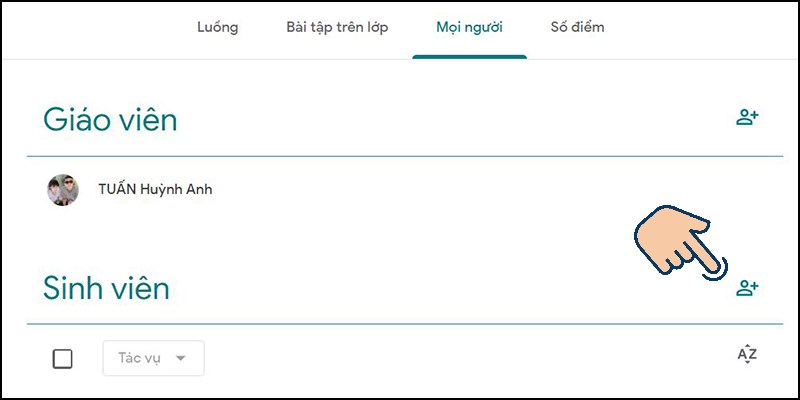
<p><strong>Bước 3:&nbsp;</strong>Vào lớp học bạn muốn mời học sinh vào lớp chọn vào mục&nbsp;<strong>Mọi người&nbsp;</strong>&gt;&nbsp;Chọn&nbsp;<strong>biểu tượng hình người</strong>&nbsp;ở mục&nbsp;<strong>Sinh viên</strong>.</p>
<img alt="chọn vào mục Mọi người. Chọn biểu tượng hình người ở mục Sinh viên." data-original="https://cdn.tgdd.vn/2020/06/content/cach-su-dung-google-classroom-cho-giao-vien3-800x400.jpg" height="400" src="https://cdn.tgdd.vn/2020/06/content/cach-su-dung-google-classroom-cho-giao-vien3-800x400.jpg" width="800" />
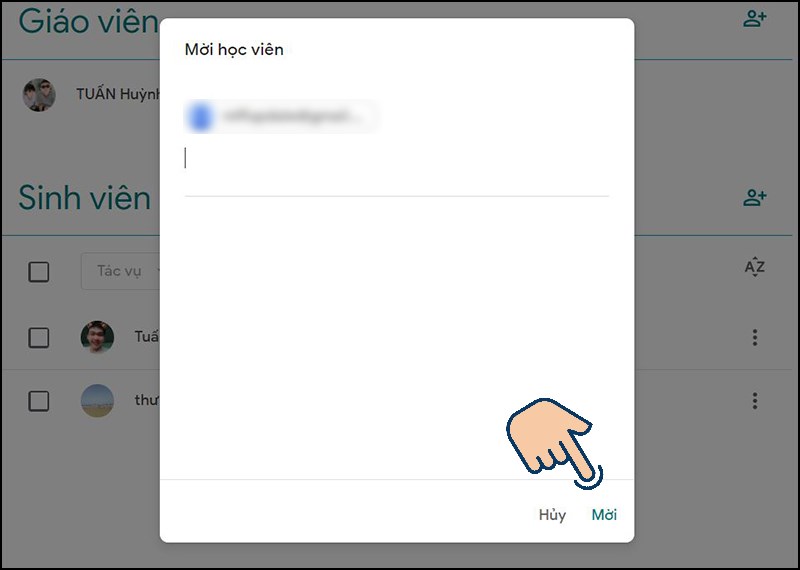
<p><strong>Bước 4:&nbsp;</strong>Nhập&nbsp;<strong>Gm</strong><strong>ail học sinh - sinh viên</strong>&nbsp;cần mời vào và chọn&nbsp;<strong>Mời</strong>.&nbsp;</p>
<img alt="Nhập Gmail học sinh - sinh viên cần mời vào và chọn Mời. " data-original="https://cdn.tgdd.vn/2020/06/content/cach-su-dung-google-classroom-cho-giao-vien4-800x570.jpg" height="570" src="https://cdn.tgdd.vn/2020/06/content/cach-su-dung-google-classroom-cho-giao-vien4-800x570.jpg" width="800" />
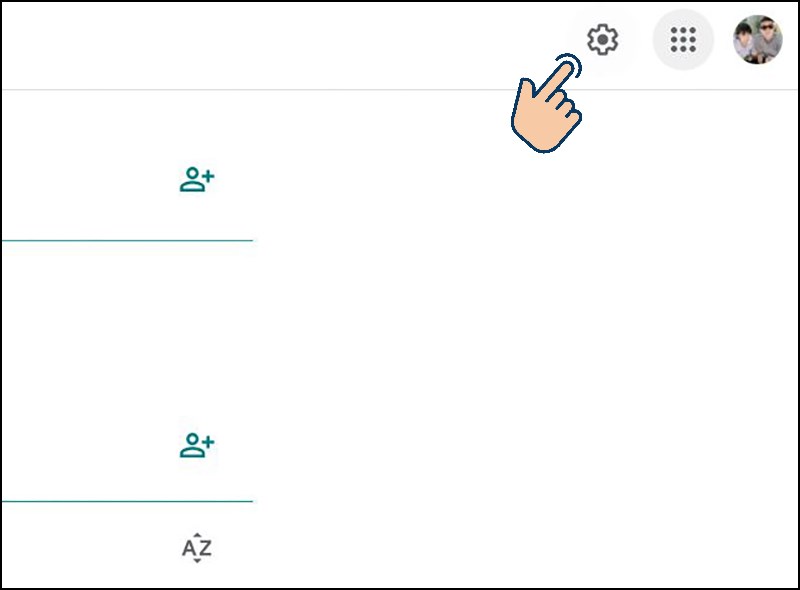
<p>Hoặc bạn có thể cấp cho học sinh - sinh viên mã lớp học để họ có thể<strong>&nbsp;trực tiếp</strong>&nbsp;vào bằng mã này bằng cách chọn vào<strong>&nbsp;icon răng cưa.</strong></p>
<img alt="bạn có thể cấp cho học sinh - sinh viên mã lớp học để họ có thể trực tiếp vào bằng mã này bằng cách chọn vào icon răng cưa." data-original="https://cdn.tgdd.vn/2020/06/content/cach-su-dung-google-classroom-cho-giao-vien5-800x590.jpg" height="590" src="https://cdn.tgdd.vn/2020/06/content/cach-su-dung-google-classroom-cho-giao-vien5-800x590.jpg" width="800" />
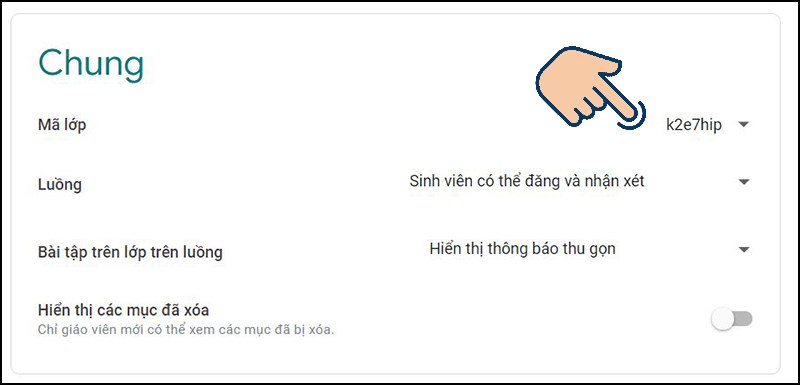
<p>Tìm đến mục&nbsp;<strong>chung</strong>&nbsp;và sao chép&nbsp;<strong>mã lớp học</strong>&nbsp;cho học sinh - sinh viên.</p>
<img alt="Tìm đến mục chung và sao chép mã lớp học cho học sinh - sinh viên." data-original="https://cdn.tgdd.vn/2020/06/content/cach-su-dung-google-classroom-cho-giao-vien6-800x385.jpg" height="385" src="https://cdn.tgdd.vn/2020/06/content/cach-su-dung-google-classroom-cho-giao-vien6-800x385.jpg" width="800" />
<p><strong>Lưu ý:</strong>&nbsp;Với cách dùng mã để học sinh - sinh viên vào trực tiếp lớp học, có thể bị những kẻ xấu lạm dụng để vào phá lớp học của bạn.</p>

<h3 id="qmenu4">IV. Hướng dẫn tạo bài đăng chia sẻ với các thành viên trong lớp</h3>

<h4 id="subqmenu3">1. Hướng dẫn nhanh</h4>

<ul>
	<li>Vào lớp cần tạo bài đăng, nhập&nbsp;<strong>thông tin</strong>&nbsp;cần đăng vào ô trống tại mục<strong>&nbsp;Luồng</strong>.</li>
	<li>Chọn&nbsp;<strong>Thêm</strong>&nbsp;&gt; Chọn nơi, file bạn muốn thêm vào.</li>
	<li>Chọn&nbsp;<strong>đối tượng</strong>&nbsp;bạn muốn chia sẻ &gt; Chọn<strong>&nbsp;Đăng.</strong></li>
</ul>

<h4 id="subqmenu4">2. Hướng dẫn chi tiết</h4>

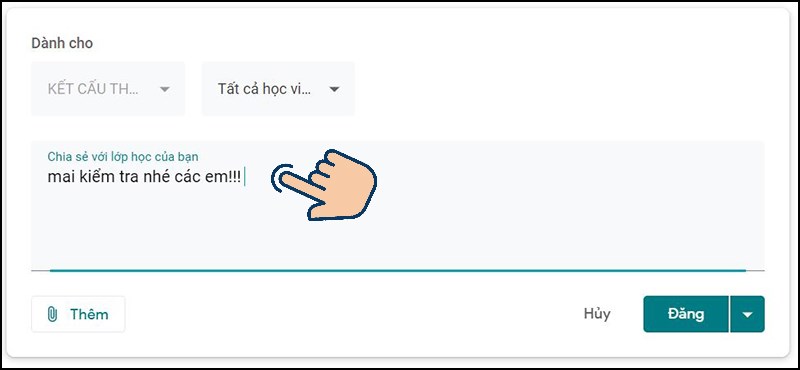
<p><strong>Bước 1:</strong>&nbsp;Vào lớp cần tạo bài đăng, nhập những&nbsp;<strong>thông tin</strong>&nbsp;cần đăng vào ô trống tại mục<strong>&nbsp;Luồng</strong>.</p>
<img alt="Vào lớp cần tạo bài đăng. Ở mục Luồng bạn hãy nhập những thông tin cần đăng vào ô trống." data-original="https://cdn.tgdd.vn/2020/06/content/cach-su-dung-google-classroom-cho-giao-vien7-800x370.jpg" height="370" src="https://cdn.tgdd.vn/2020/06/content/cach-su-dung-google-classroom-cho-giao-vien7-800x370.jpg" width="800" />
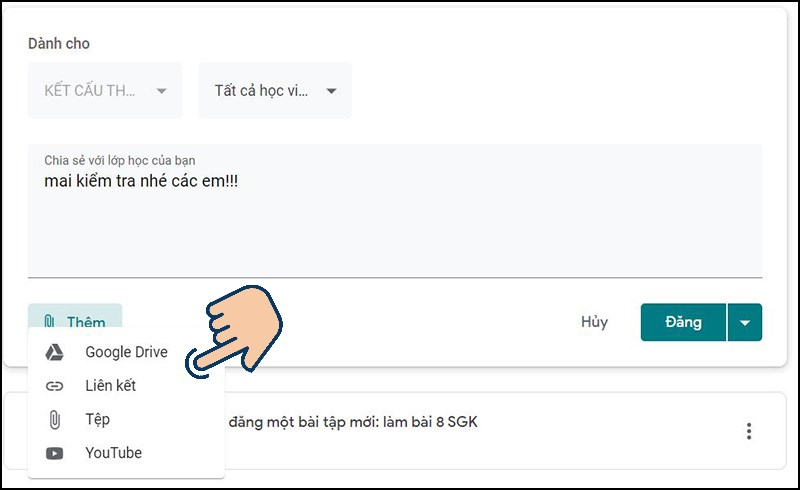
<p><strong>Bước 2:</strong>&nbsp;Chọn&nbsp;<strong>Thêm</strong>&nbsp;&gt; Chọn nơi, file bạn muốn thêm vào.</p>

<p>Các loại file Google Classroom hỗ trợ như:&nbsp;<a href="https://www.thegioididong.com/game-app/google-drive-bo-nho-tep-219990" rel="dofollow" target="_blank" title="Google Drive">Google Drive</a>, Liên kết, Tệp từ máy của bạn,&nbsp;<a href="https://www.thegioididong.com/game-app/youtube-mang-video-so-1-the-gioi-220096" rel="dofollow" target="_blank" title="Youtube">Youtube</a>.</p>
<img alt="Bạn có thể thêm file vào bài đăng." data-original="https://cdn.tgdd.vn/2020/06/content/cach-su-dung-google-classroom-cho-giao-vien8-800x490.jpg" height="490" src="https://cdn.tgdd.vn/2020/06/content/cach-su-dung-google-classroom-cho-giao-vien8-800x490.jpg" width="800" />
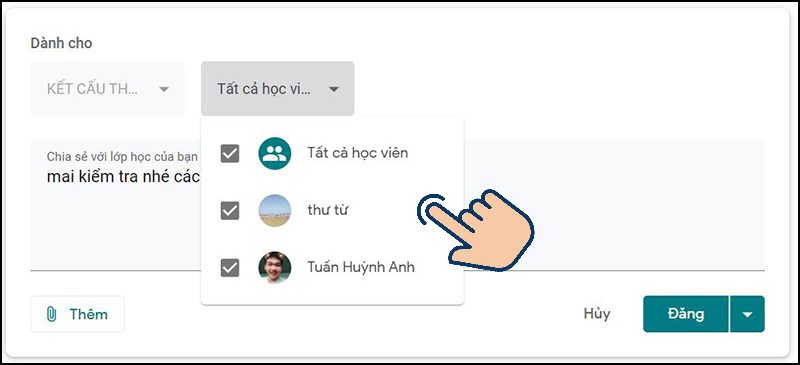
<p><strong>Bước 3:</strong>&nbsp;Chọn&nbsp;<strong>đối tượng</strong>&nbsp;bạn muốn&nbsp;<strong>chia sẻ</strong>.</p>
<img alt="Chọn đối tượng bạn muốn chia sẻ." data-original="https://cdn.tgdd.vn/2020/06/content/cach-su-dung-google-classroom-cho-giao-vien9-800x365.jpg" height="365" src="https://cdn.tgdd.vn/2020/06/content/cach-su-dung-google-classroom-cho-giao-vien9-800x365.jpg" width="800" />
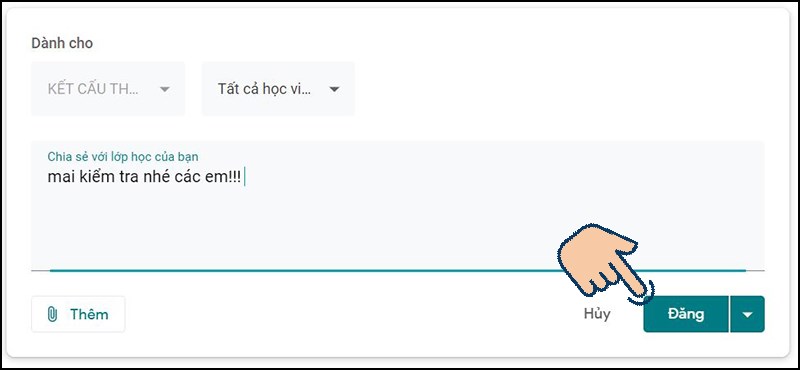
<p><strong>Bước 4:</strong>&nbsp;Chọn vào&nbsp;<strong>Đăng</strong>.</p>
<img alt="Chọn vào Đăng." data-original="https://cdn.tgdd.vn/2020/06/content/cach-su-dung-google-classroom-cho-giao-vien10-800x370.jpg" height="370" src="https://cdn.tgdd.vn/2020/06/content/cach-su-dung-google-classroom-cho-giao-vien10-800x370.jpg" width="800" />
<h3 id="qmenu5">V. Tạo bài đăng và kiểm tra tiến độ làm bài của học sinh</h3>

<h4 id="subqmenu5">1. Tạo bài đăng</h4>

<p><strong>Hướng dẫn nhanh</strong></p>

<ul>
	<li>Vào mục&nbsp;<strong>Bài tập trên lớp</strong>&nbsp;của lớp học &gt; Chọn&nbsp;<strong>Tạo&nbsp;</strong>&gt;&nbsp;Chọn các&nbsp;<strong>dạng bài tập</strong>&nbsp;cho&nbsp;<strong>học sinh</strong>&nbsp;mà bạn muốn.</li>
	<li>Ghi<strong>&nbsp;tiêu đề,</strong>&nbsp;<strong>hướng dẫn</strong>, hoặc&nbsp;<strong>thêm file</strong>&nbsp;mà bạn muốn.&nbsp;</li>
	<li>Điền đầy đủ&nbsp;<strong>thông tin</strong>&nbsp;cần thiết &gt;&nbsp;Bấm&nbsp;<strong>Giao bài.</strong></li>
</ul>

<p><strong>Hướng dẫn chi tiết</strong></p>

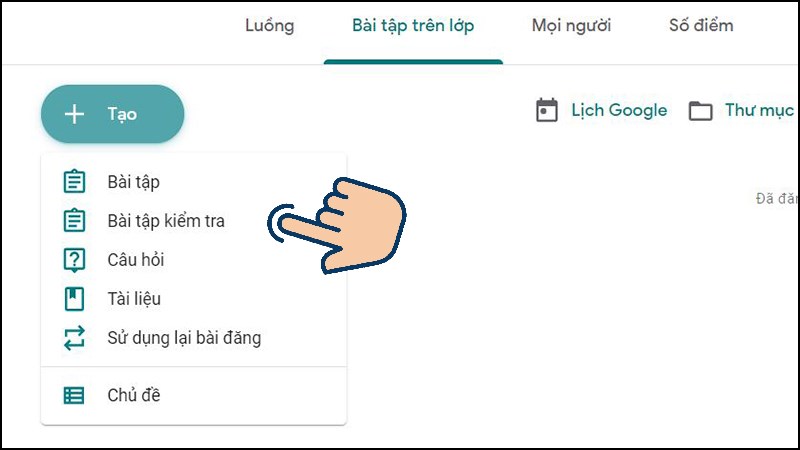
<p><strong>Bước 1:</strong>&nbsp;Vào mục&nbsp;<strong>Bài tập trên lớp</strong>&nbsp;của lớp học &gt; Chọn&nbsp;<strong>Tạo&nbsp;</strong>&gt;&nbsp;Chọn các&nbsp;<strong>dạng bài tập</strong>&nbsp;cho&nbsp;<strong>học sinh</strong>&nbsp;mà bạn muốn.</p>
<img alt="Vào mục Bài tập trên lớp của lớp học. Chọn vào Tạo. Chọn các dạng bài tập" data-original="https://cdn.tgdd.vn/2020/06/content/cach-su-dung-google-classroom-cho-giao-vien11-800x450.jpg" height="450" src="https://cdn.tgdd.vn/2020/06/content/cach-su-dung-google-classroom-cho-giao-vien11-800x450.jpg" width="800" />
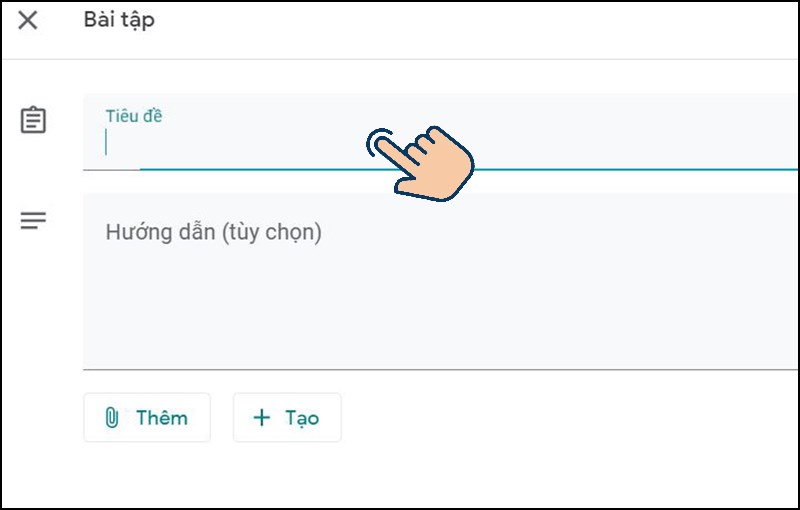
<p><strong>Bước 2:</strong>&nbsp;Ghi<strong>&nbsp;tiêu đề,</strong>&nbsp;<strong>hướng dẫn</strong>, hoặc&nbsp;<strong>thêm file</strong>&nbsp;mà bạn muốn.&nbsp;</p>
<img alt="Ghi tiêu đề, hướng dẫn, hoặc thêm file mà bạn muốn. " data-original="https://cdn.tgdd.vn/2020/06/content/cach-su-dung-google-classroom-cho-giao-vien12-800x510.jpg" height="510" src="https://cdn.tgdd.vn/2020/06/content/cach-su-dung-google-classroom-cho-giao-vien12-800x510.jpg" width="800" />
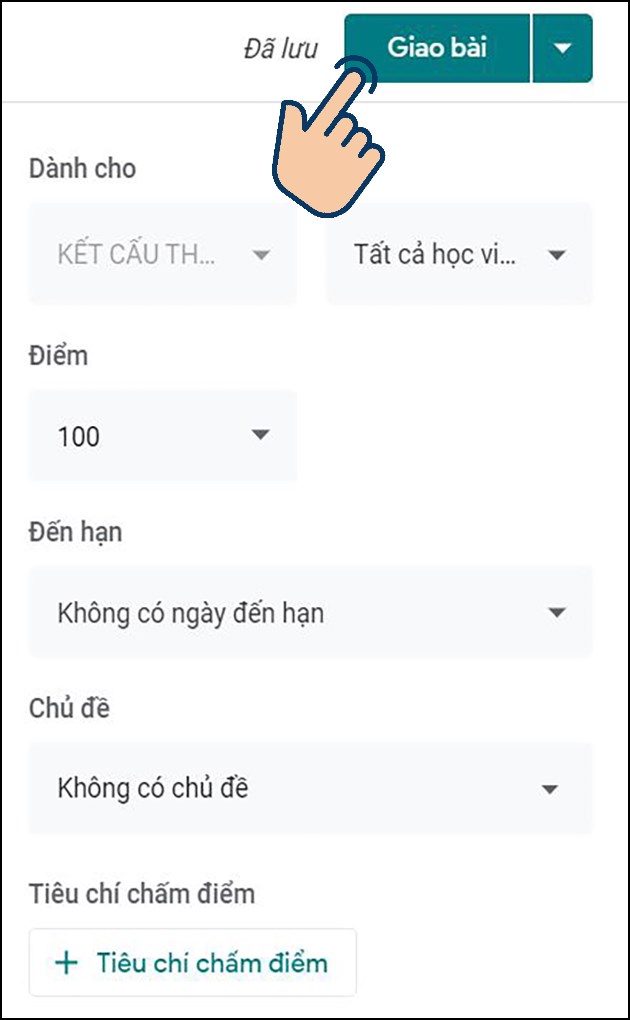
<p><strong>Bước 3:</strong>&nbsp;Điền đầy đủ&nbsp;<strong>thông tin</strong>&nbsp;như&nbsp;<strong>đối tượng bạn muốn giao bài tập</strong>,&nbsp;<strong>số điểm</strong>,&nbsp;<strong>ngày đến hạn nộp bà</strong>i, hoặc<strong>&nbsp;chủ đề</strong>. Sau đó bạn bấm&nbsp;<strong>Giao bài</strong>.&nbsp;</p>
<img alt="Điền đầy đủ thông tin , bấm giao bài" data-original="https://cdn.tgdd.vn/2020/06/content/cach-su-dung-google-classroom-cho-giao-vien13-630x1020.jpg" height="1020" src="https://cdn.tgdd.vn/2020/06/content/cach-su-dung-google-classroom-cho-giao-vien13-630x1020.jpg" width="630" />
<h4 id="subqmenu6">2. Kiểm tra tiến độ làm bài</h4>

<p><strong>Hướng dẫn nhanh</strong></p>

<p>Tại mục&nbsp;<strong>Bài tập trên lớp&nbsp;</strong>&gt;&nbsp;Chọn vào&nbsp;<strong>bài tập bạn đã giao</strong>&nbsp;&gt;&nbsp;Chọn vào ô&nbsp;<strong>Đã nộp</strong>. Bạn có thể thấy được sinh viên&nbsp;<strong>đã nộp bài</strong>&nbsp;và có thể&nbsp;<strong>chấm điểm</strong>&nbsp;trực tiếp tại đây.</p>

<p><strong>Hướng dẫn chi tiết</strong></p>

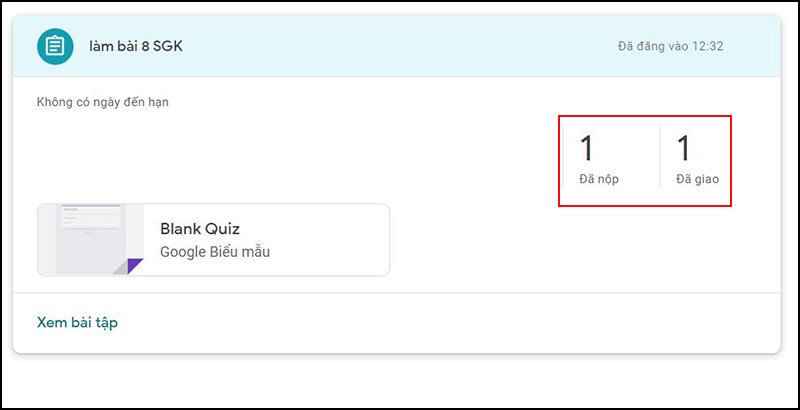
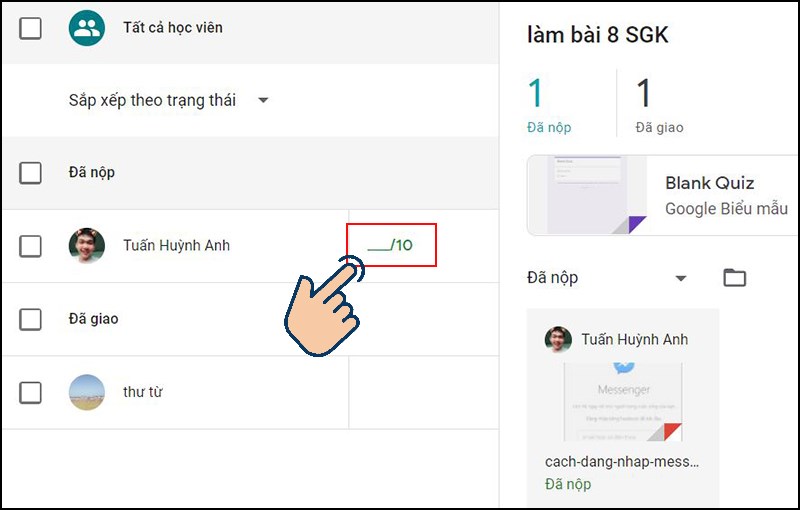
<p><strong>Bước 1:</strong>&nbsp;Tại mục&nbsp;<strong>Bài tập trên lớp&nbsp;</strong>&gt;&nbsp;Chọn vào&nbsp;<strong>bài tập bạn đã giao</strong>, bạn có thể thấy được số lượng sinh viên đã nộp ở ô&nbsp;<strong>Đã nộp</strong>&nbsp;và số lượng sinh viên được giao bài tập ở ô&nbsp;<strong>Đã giao</strong>.</p>
<img alt="Tại mục Bài tập trên lớp. Chọn vào bài tập bạn đã giao" data-original="https://cdn.tgdd.vn/2020/06/content/cach-su-dung-google-classroom-cho-giao-vien14-800x410.jpg" height="410" src="https://cdn.tgdd.vn/2020/06/content/cach-su-dung-google-classroom-cho-giao-vien14-800x410.jpg" width="800" />
<p><strong>Bước 2:</strong>&nbsp;Chọn vào ô&nbsp;<strong>Đã nộp</strong>. Bạn có thể thấy được sinh viên&nbsp;<strong>đã nộp bài</strong>&nbsp;và có thể&nbsp;<strong>chấm điểm</strong>&nbsp;trực tiếp tại đây.</p>
<img alt="Chọn vào ô Đã nộp,có thể chấm điểm trực tiếp tại đây." data-original="https://cdn.tgdd.vn/2020/06/content/cach-su-dung-google-classroom-cho-giao-vien15-800x510.jpg" height="510" src="https://cdn.tgdd.vn/2020/06/content/cach-su-dung-google-classroom-cho-giao-vien15-800x510.jpg" width="800" />
<h3 id="qmenu6">VI. Quản lý số điểm của học sinh</h3>

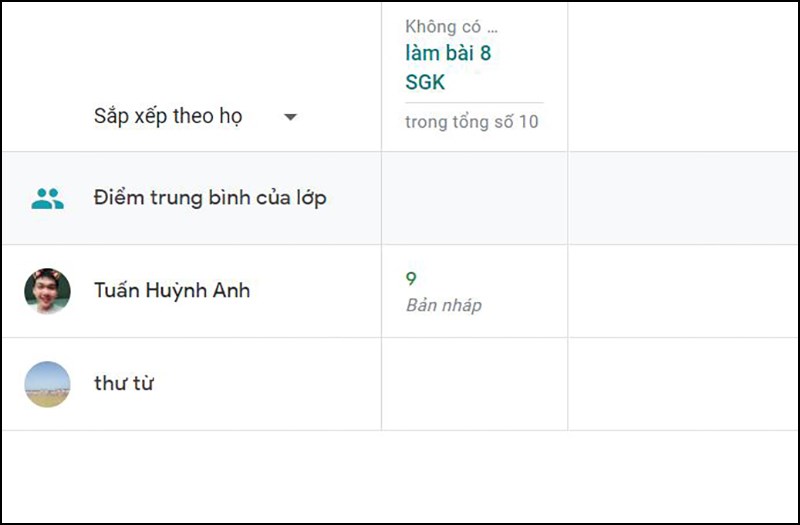
<p>Tại mục&nbsp;<strong>Số điểm</strong>&nbsp;của lớp học, bạn có thể dễ dàng xem số điểm của học sinh mà bạn&nbsp;<strong>đã chấm</strong>&nbsp;tại đây.</p>
<img alt="Tại mục Số điểm của lớp học, bạn có thể dễ dàng xem số điểm của học sinh mà bạn đã chấm tại đây." data-original="https://cdn.tgdd.vn/2020/06/content/cach-su-dung-google-classroom-cho-giao-vien16-800x525.jpg" height="525" src="https://cdn.tgdd.vn/2020/06/content/cach-su-dung-google-classroom-cho-giao-vien16-800x525.jpg" width="800" />
<p>Với những cách sử dụng Google Classroom cho giáo viên đơn giản ở trên đây, mong sẽ giúp ích cho quý thầy cô&nbsp;trong việc dạy học online của mình. Chúc quý thầy cô&nbsp;thành công.</p>
		</div>
				<div id="author">
						<p>
				<strong>Tác giả:</strong>
				Admin Arrebol
			</p>
		</div>
	</div>
	<div id="footer" class="clearfix">
		<div id="url">
			<strong>URL của bản tin này: </strong><a href="http://arrebol.edu.vn/savefile/kinh-nghiem/huong-dan-su-dung-google-classroom-danh-cho-gv-48.html" title="Hướng dẫn sử dụng Google Classroom Dành cho GV">http://arrebol.edu.vn/savefile/kinh-nghiem/huong-dan-su-dung-google-classroom-danh-cho-gv-48.html</a>

		</div>
		<div class="clear"></div>
		<div class="copyright">
			&copy; Arrebol  - Chia sẻ kiến thức kết nối thành công
		</div>
		<div id="contact">
			<a href="mailto:webmaster@arrebol.edu.vn">webmaster@arrebol.edu.vn</a>
		</div>
	</div>
</div>
        <div id="timeoutsess" class="chromeframe">
            Bạn đã không sử dụng Site, <a onclick="timeoutsesscancel();" href="http://arrebol.edu.vn/#">Bấm vào đây để duy trì trạng thái đăng nhập</a>. Thời gian chờ: <span id="secField"> 60 </span> giây
        </div>
        <div id="openidResult" class="nv-alert" style="display:none"></div>
        <div id="openidBt" data-result="" data-redirect=""></div>
<script src="http://arrebol.edu.vn/assets/js/jquery/jquery.min.js"></script>
<script>var nv_base_siteurl="/",nv_lang_data="vi",nv_lang_interface="vi",nv_name_variable="nv",nv_fc_variable="op",nv_lang_variable="language",nv_module_name="news",nv_func_name="savefile",nv_is_user=0, nv_my_ofs=7,nv_my_abbr="+07",nv_cookie_prefix="nv4",nv_check_pass_mstime=1738000,nv_area_admin=0,nv_safemode=0,theme_responsive=0,nv_recaptcha_ver=2,nv_recaptcha_sitekey="",nv_recaptcha_type="image";</script>
<script src="http://arrebol.edu.vn/assets/js/language/vi.js"></script>
<script src="http://arrebol.edu.vn/assets/js/global.js"></script>
<script src="http://arrebol.edu.vn/themes/arrebol/js/news.js"></script>
<script src="http://arrebol.edu.vn/themes/arrebol/js/main.js"></script>
<script src="http://arrebol.edu.vn/themes/arrebol/js/custom.js"></script>
<script type="application/ld+json">
        {
            "@context": "https://schema.org",
            "@type": "Organization",
            "url": "http://arrebol.edu.vn",
            "logo": "http://arrebol.edu.vn/uploads/nguyen_1.png"
        }
        </script>
<script src="http://arrebol.edu.vn/themes/arrebol/js/bootstrap.min.js"></script>
</body>
</html>